
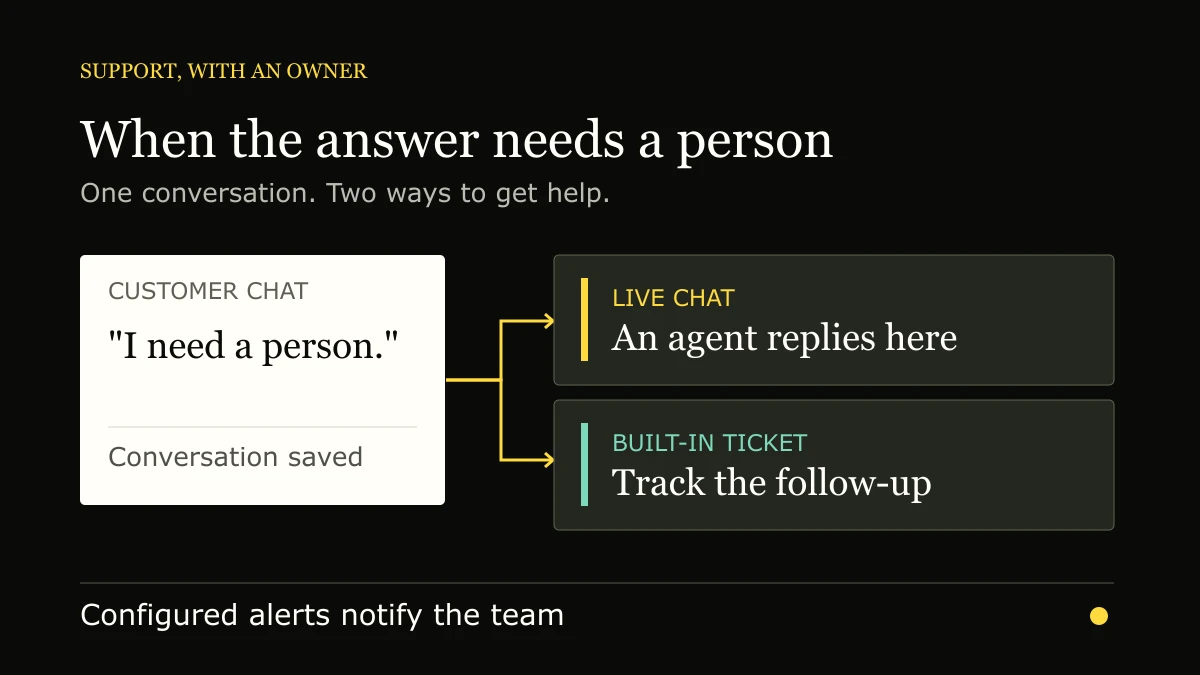
Yes. FAQ Hub has live chat with human replies, configurable notifications for the team, and a ticketing system in the backoffice. They are part of the support workflow, not features you have to assemble from a separate helpdesk before a customer can reach you.
The distinction matters when a customer asks something your knowledge base cannot answer. A helpful article or AI reply is one outcome. A person continuing the conversation, or a ticket that somebody can work later, is another. FAQ Hub supports both paths.
What happens when a customer asks for a person?
A visitor can use Talk to a human in chat or ask for a person in their message. The session is marked as escalated and appears in FAQ Hub’s live-chat backoffice. Staff can open the stored conversation, see the customer’s messages and surrounding page or search context, and reply in the same thread. Replies are delivered to the visitor in real time while the connection is active.
That is a staffed conversation, not just a form that emails a transcript. The team still needs to be available to answer; enabling live chat does not promise an instant response or imply that every visitor has a dedicated agent.
How does the team find out?
Escalated chats appear in the live-chat dashboard. Tenant administrators can also configure notification channels for new escalations and tickets, including Slack, Microsoft Teams, Telegram, n8n, and Zapier. These channels need to be set up and active before external alerts can be sent.
An alert is a prompt to look at the work, not the conversation’s permanent home. Staff can read the full stored chat inside FAQ Hub; external notifications carry a bounded recent excerpt and relevant context. This keeps the actual reply and history in the support workspace rather than in a webhook message.
What if the issue needs a ticket?
The visitor can choose Create a ticket in the chat panel. FAQ Hub asks for an email address if it does not already have one, then creates a support ticket linked to the chat session. The latest visitor message becomes the initial description, and the ticket retains useful context such as the page, search query, and escalation reason where available.
The built-in ticket dashboard lets staff view tickets, inspect the linked conversation, add comments, and change status. A ticket gives the team an ongoing record when a live reply is not the right next step. It does not require an external helpdesk to exist, though teams can configure external alerts for tickets too.
Which path should a support team test?
Try a question with no documented answer. Request a human, confirm the escalation appears in the live-chat dashboard, and send a staff reply. Then start another chat, create a ticket, and check that the ticket includes the conversation context. Finally, enable a notification channel and check what the alert actually contains.
If your team is comparing support tools, test that sequence before comparing feature lists. FAQ Hub’s job here is specific: answer from your published knowledge where possible, and keep the conversation and follow-up inside one support workflow when a person is needed. For the limits of transcript continuity across new sessions, see how human handoff works in FAQ Hub. For a broader shortlist, see the live chat and human-handoff comparison.